
Find out how to use Instagram for business and effectively market your brand and products on this new mobile based social media. Instagram initially started as a fresh photo-editor app that helped users create colour rich photos with their many filters. However it has now become an image rich social network with over 100 million active users. It is a mobile phone based application and has become a very popular social network with 16 – 25 year olds.

Many teenagers have ditched Facebook for Instagram due to the watchful eye of their parents (their parents are not here….yet). It became such a relevant player that Facebook bought it for an estimated billion dollars. The site allows you to add comments to your photos and even hashtags to ensure your images are more likely to be seen.
The numbers – Instagram in statistics:
- 100 million Monthly Active Users
- 40 million Photos Per Day
- 8,500 Likes Per Second
- 1,000 Comments Per Second
Instagram for Business: The Ultimate Guide
Getting started
Instagram is very much a mobile platform so you must download the iPhone or Android app to your smartphone in order to set up an Instagram account.
Accounts
Instagram accounts are public by default, but you can create a private account. If you set up a private account only followers you approve will be able to see your photos. In that case, only users who you approve may follow you and view your photos. However, if you want to use Instagram for marketing or business purposes setting your account up as private may be counterproductive - the more users that see your content, the better for you.
Picture and bio
Once you set up your account you can add a picture profile, a 150 character bio and a link to your website. You can edit your profile on your pc here – https://instagram.com/accounts/edit/#.
Followers
Just like Twitter, people become followers on Instagram so one of your first goals will be to generate followers:
- Encourage clients and customers to follow you on Instagram.
- Like any other social network one of the easiest ways to generate followers is by finding and following them first. So search for your target market using the Explore tab (right of the home tab) on your app and start following people.
- Another action you can take is like and/or comment on the photos of the users you want to engage with.
- Other options include adding an Instagram Badge to your website – http://instagram.com/accounts/badges/# and adding an Instagram tab to your company Facebook Page – http://www.woobox.com/instagram
Linking Instagram to other Social Networks
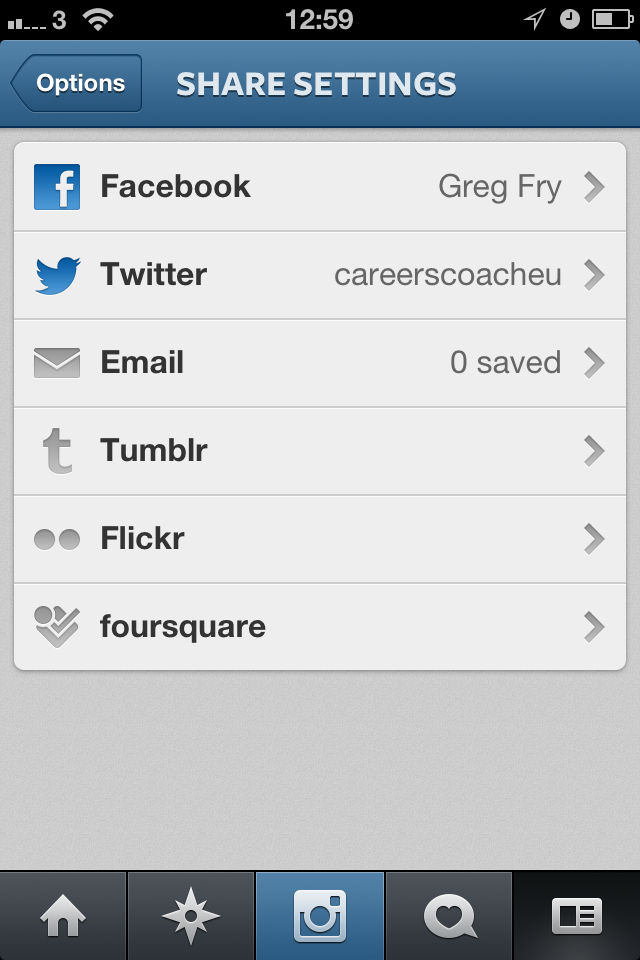 In order to maximise your Instagram pictures reach it is important to connect your Instagram account to your other social media accounts.
You can link Instagram to:
- Flickr
- Tumblr
- And Foursquare
To connect social accounts: click on the Profile Tab > Sharing Settings, and select the social network you wish to connect with.
- Once you have done this, every time you upload a photo to Instagram you will be given the option to share your photo on any of your linked social networks.
- For example if I have 200 followers on Instagram and over 12,000 fans on Facebook, I will want to ensure that my Instagram photos also reach my Facebook fans.
Adding photos
Once your account is set up it is time to share photos and to engage with your followers. Here’s how you take a photo.
- Open the application on your smartphone.
- Click the blue camera button at the bottom of your Instagram navigation panel. Instagram will automatically activate your phone’s camera.
- You have the option of taking a photo or choosing an existing picture on your phone.
If you choose to use an existing photo, click on the square button right of the photo tab. NB. If you choose a photo from your camera roll, keep in mind that Instagram sizes photos to perfect squares. So, if you select an existing photo you will have to crop your image.
Editing photos
Once you have selected or taken a photo Instagram gives you the option of adding borders and applying rich filters that will give your image a professional vibrant look.
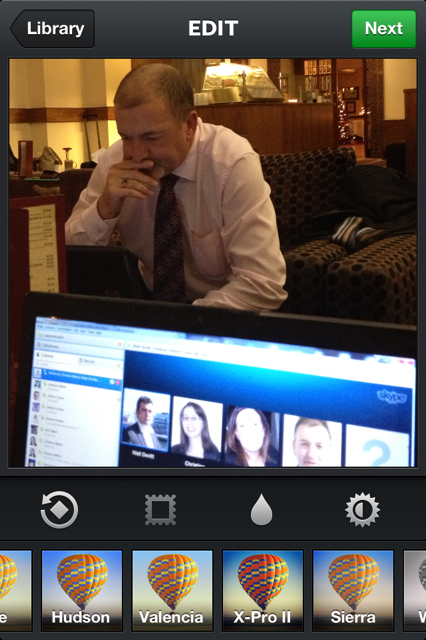 Here is a quick guide to Instragram’s filters and when to use which one.
- Amaro: Adds more light to your image, but focuses it mostly towards the centre. The darker the photo, the more you will notice this effect. Use When: You want to give your photo a somewhat aged appearance.
- Rise: Gives images a nice glow and provides softer lighting on the subject. Use When: You’re taking close-up shots of people.
- Hudson: Gives your images an icy look. The slight tint and altered lighting gives these images a colder feel. Use When: You’re outdoors. It’s particularly effective when you’re taking photos of buildings or monuments.
- X-Pro II: Makes the colours in your image more vibrant giving a warm appearance. Use When: There are strong colours in your image, can be used both indoors and outdoors depending on the subject
- Sierra: Makes images appear softer, but unlike Rise, Sierra gives a faded look. Use When: You want your nature and outdoor shots to appear calm and soothing.
- Lo-Fi: Adds rich colours and strong shadows to the image. Use When: Great to showcase food.
- Earlybird: Mostly faded and blurred colours, making an image appear older than it is. Use When: If you want your image to look ‘cool’
- Sutro: Gives images a smoked look, with particular emphasis on purple and brown colours to achieve this effect. Use When: You want to give images a creepier feel.
- Toaster: Gives the centre of your image a burnt look, making the image look aged. Use When: You’re taking photos of a summer event, so nights out, BBQs, picnics, etc.
- Brannan: Provides a greyish tint that gives images a darker, more metallic appearance. Use When: Your image has strong shadows.
- Inkwell: Turns your image black and white. Use When: Light and shadow are prominent in your image.
- Hefe: Similar to Lo-Fi, but the colours aren’t as dramatic. Use When: Anywhere you want to enhance vibrant colours, but not to the same extent as Lo-Fi.
- Valencia: Gives your image a faded quality, as if it was taken in the 1980s. Use When: You want to give an image an antique feel.
- Nashville: Gives your images a nice, warm feel. Also, includes a slightly pink tint to help achieve this effect. Use When: You want to give your photos a nostalgic feel.
- 1977: As the title suggests, gives your image a brighter, faded look. Use When: You want your image to look like it was taken in the 1970s.
- Kelvin: Gives images a bright, vibrant feel and provides it with a radiant glow overall. Use When: You want to give a photo a nice, warm feeling.
[Source: Simply Zesty]
Note: The above is just a guide. It is up to you to decide what filter best suits your image. Personally my favourite filter is Lo-Fi as it adds real rich colours to my images.
Adding text to your photo
Once you have the right photo and applied the appropriate filter you are nearly ready to unleash your image to the world. However, before you do this it is important to add some text to complement your image.
This can be a great way to explain your image and even to add a call to action. Eg. “Is this the best Hotel in the world?” Or ““Like” this if you agree”.
Hashtags
Hashtags are highly effective ways of reaching a larger audience on Instagram:
- Add one or possibly two hashtags to your image.
- Take time researching what relevant hashtags are popular on Instagram.
For example: If I was the marketing manager of Leinster Rugby Club I would see that fans were using #Leinster and #Leinsterruby when mentioning the team. I would therefore want to ensure that we used those hashtags too. That way I would reach fans that may not be following the Instagram account.
To search for hashtags on Instagram click on the explore tab to search for popular hashtags. More details on hashtags can be found on the Instagram blog here.
How can a Business use Instagram?
So how can Instagram help a business? There are many great ways you can increase followers, generate engagement and even increase sales via Instagram. Pictures tend to make people feel more connected to a brand than just text.
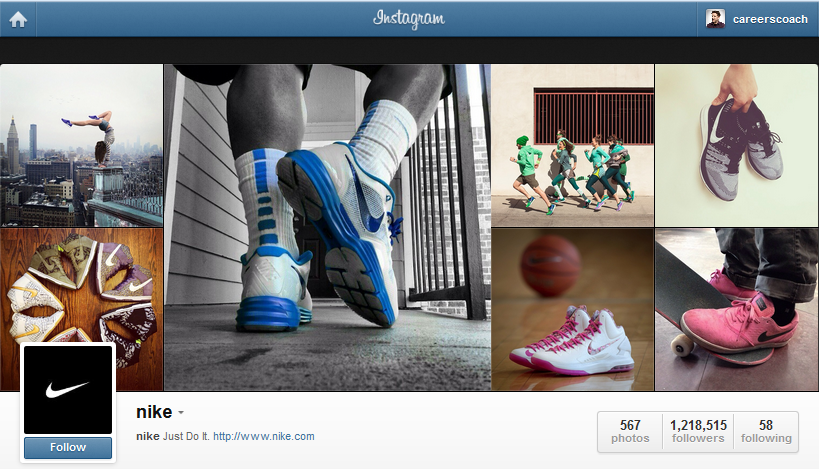
Here are a few ideas:
Showcase your products
Many clothes companies show their latest fashion items on Instagram before they even hit the shops. The sneak peak picture of something that has yet to be released offers real value to followers and very often creates a viral effect.
Show your followers how your product or service is made
This can be insightful and make the user feel they are more connected to your brand. It is also a great way to demonstrate your skills and expertise. GE used Instagram initially to showcase all the past products that they have made and found that users were hugely engaged about how their products were produced.
Show users your office
What is it like to work there? Introduce them to your staff. Visual images of your office can be used to attract talent to your organisation as well as making you seem a friendly, human and even hip organisation.
Show cute pictures, but not too much.
It is still a mystery to me why a cute picture of a cat will generate so much attention, but it will. So a picture of the office cat or dog every now and again will do you no harm.
Run competitions
Instagram is set up perfectly to run competitions. Use a hashtag and ask users to upload photos using that hashtag. Use other social media networks to promote your Instagram competitions. Sony have had great success running competitions on Instagram. They ran a competition using the hashtag – #Sonylove.
- Sony asked people to first follow them on Instagram and then post pictures of anything that represents “love.”
- The pictures could be anything that represents love to you, like a person, product, place or anything. One person at random was chosen every day to win a $50 Sony Store gift card.
- Other winners would get some of the new Sony merchandise based on appropriateness to theme, originality, creativity and technique.
- Their competitions have managed to generate over 18,000 new followers.
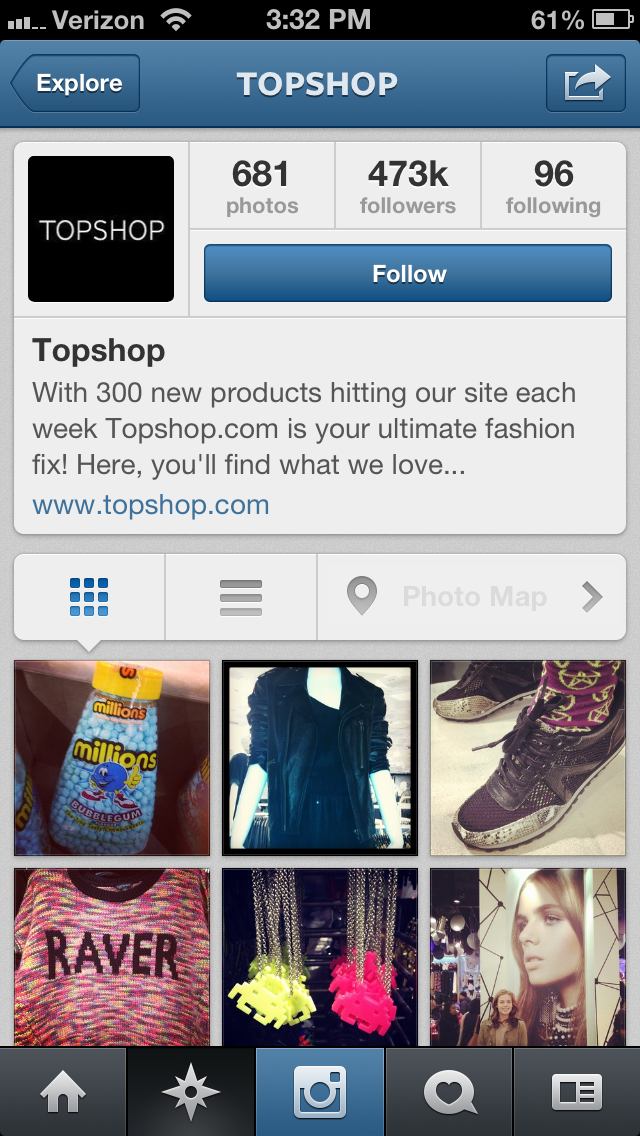 Reward your followers for looking at your pictures and reading the descriptions
TopShop, who have over 473,000 followers, frequently post pictures of their clothes and accessories and even shoppers.
- They have kept their audience highly engaged by including promotional codes in some of their posts.
- This has kept their follower numbers high. Also, their comments and likes on each picture are in the hundreds and sometimes even the thousands.
Post pictures of your happy customers
Imagine you have a restaurant. You may say your restaurant is great, but you are biased. However if I see customers enjoying their meal at your restaurant I am more likely to be convinced. Virgin Airlines are a great example of a company that likes to show their brand experience through Instagram.
- They frequently post pictures of surprises they give to their customers, where their customers are going, snapshots of their customers with celebrities including the CEO of the Virgin Group Richard Branson and shout-outs to sponsors that make their brand experience even more memorable.
- Fans who follow Virgin America on Instagram associate them with a brand experience unlike any other airline.
- By engaging with their fans and showing happy customers who could really be anyone, the company is able to achieve goals by utilizing Instagram.
Use Hashtags to promote your events
Create a buzz before, during and after your event by encouraging attendees to follow and add photos using your hashtag. The great thing about hashtags on Instagram is that I can add great live images and as much text as I want.
Other Applications for Instagram
Finally there are many applications that will help your Instagram experience. Here are a few I use:
- InstaPad: If you have an iPad InstaPad is the perfect application to browse your Instagram feed.
- Statigram: Statigram is the most established Instagram account management application on the web. It is great to use on a PC or laptop. It allows you to look and analyse follower and image statistics. It is a handy tool to see how you are performing.
- Klout: Great news for Klout users. Make sure you add Instagram to your Klout account. It now helps increase your Klout score
- Hootsuite: You can now add Instagram to your Hootsuite account via the Applications Directory. It allows Hootsuite users to share Instagram photos to your social networks, view your photos plus view and post comments and likes. It even allows you to search for keywords and click on hashtags to view related photos.
Limited functionality on a Desktop or PC
Despite recent improvements, Instagram has limited functionality on a desktop or PC. You can now edit your profile, like and comment on other peoples posts via your computer and users will soon be able to search Instagram on their PCs.
However, to date you cannot add a photo directly to Instagram via your PC. This is a major obstacle for Marketing Managers, however I expect Instagram to allow uploads from your PC in the near future. Dropbox: In the meantime I currently use Dropbox to move images from my PC to my smartphone where I can edit and upload on Instagram.
Understanding the Digital Economy
Reports:

- International Student Recruitment
- General and Health Insurance
- FMCG Sector – Retail and Ecommerce
- Attracting Top Tier Talent
- Social Media in Politics
Guides:
- Social Media Strategy
- Blogging
- SEO
- YouTube
- Google Analytics
- Adwords
- Google+
- Klout
- SMS Marketing
- Mobile Commerce
Contact us
If you would like to talk further about how Instagram can benefit your business, or if you would like The Ahain Group to help you along this path please feel free to contact us.
Connect: 


Guy Kawasaki made a quote that I love – “The nobodies are the new somebodies”. Over the past 5 years businesses have had a big focus on generating Likes, Followers, Connections and friends on their various Social Media sites. Companies have become obsessed by numbers. They think that if they get 1,000s of Facebook likes on their business page they have cracked the social media puzzle. However, the online world is no different from the offline one in the sense that Quality will often trump Quantity. So whilst generating a large online community may be important, ensure that your community is made up of relevant, engaged and influential people by reading our ‘Klout for Business: A Guide to Measuring Social Media Influence’.

Influence online
Companies have started to realise two things:
- People who traditionally had little influence offline have become very very influential online.
- Unless they engage effectively with their target audience online their numbers will have little or no ROI.
For this reason we are seeing the more social media savvy companies starting to focus on building more meaningful relationships with their communities online and spending more time identifying and engaging with the most influential online consumers in their industry.
After all if I write a “food” blog post and it is shared 40 times by individuals that have few connections and no real online influence it may not reach as many eyes as I would expect. However if I write a “food” blog post and it is shared by Jamie Oliver or even the great Donal Skehan my message is sure to reach, and be read by, more people.
For that reason it makes sense to look at who is interacting with you and/or your brand online and evaluate how influential they may be. It is the online “movers and shakers” that can really raise a profile or spread a message online.
Sadly they can often damage our reputation too, so we need to know who these people are and where applicable engage with them.
Measuring influence
There are a number of sites companies can use to determine their level of influence online and look at other people’s influence. Three such sites are:
All three sites have their own algorithm to give each individual a score of influence. While it is largely believed that these scores can be manipulated to some extent they do act as a good initial gauge when assessing someone’s influence on Social Media.
Klout for business: what is it?
Klout is a website that measures peoples influence online. It looks at users’ social media accounts and determines one’s ability to generate engagement and drive others to action.
So Klout not only looks at what you do, but how your online network responds to your content.

Klout takes in data from social networks and gives users an overall Score based on their online influence:
- Data from Twitter, Facebook, LinkedIn, Google+ and even Foursquare to determine your level of influence.
- It does not look at your other online activity such as blogging and other forums when determining your score. However if you share your blog post on your social networks it will look at the number of comments, ReTweets, shares, likes etc.
How your Klout is calculated?
The Klout Score incorporates more than 400 signals from seven different networks. They process this data on a daily basis to generate updates to a user’s Klout Score.
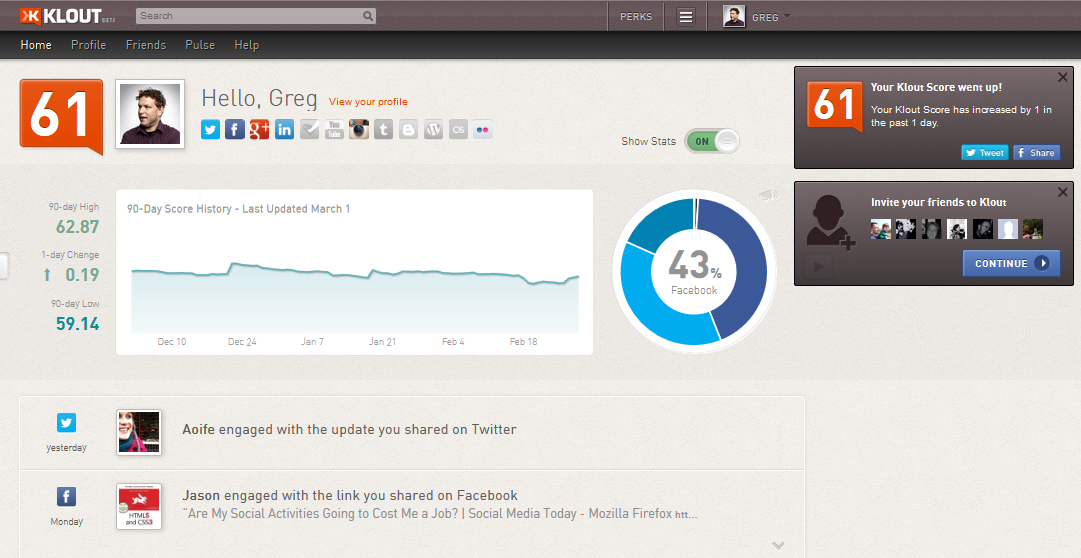
According to Klout themselves:
“The majority of the signals used to calculate the Klout Score are derived from combinations of attributes, such as the ratio of reactions you generate compared to the amount of content you share. For example, generating 100 retweets from 10 tweets will contribute more to your Score than generating 100 retweets from 1,000 tweets. We also consider factors such as how selective the people who interact with your content are. The more a person likes and retweets in a given day, the less each of those individual interactions contributes to another person’s score. Additionally, we value the engagement you drive from unique individuals. One-hundred retweets from 100 different people contribute more to your Score than do 100 retweets from a single person”.
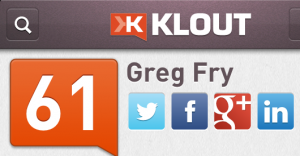
Here is a breakdown of what Klout measures:
(Klout only measures activity on your Personal Facebook Page)
- Mentions
- Likes
- Comments
- Subscribers
- Wall Posts (Klout looks at posts to your wall and believe they indicate influence and engagement).
- Friends (Number of friends and the reach of your network are less important than how your network engages with your content)
- Retweets
- @ Mentions
- List Memberships (Being included on lists created by other influential users).
- Followers (Number of followers contributes to score, but engagement levels receive more weight than a high follow count).
- Replies (Klout looks at how you respond to peoples questions and comments mentioning you).
Google+
- Comments
- +1’s
- Reshares
- Title: Your reported title on LinkedIn is a signal of your real-world influence and is persistent.
- Connections (Klout looks at your connection graph to assess your level of real world influence)
- Recommendations and even endorsements.
- Comments and Likes on your updates.
Klout
- The number of +Ks received.
Foursquare
- Tips Done: The number of suggestions you’ve left that have been completed indicate your ability to influence others on foursquare.
Wikipedia
- Inlinks: Measures the total number of inbound links to a page.
- Ratio of Inlinks to Outlinks: Compares the number of inbound links to a page to the number of outbound links.
- Page Importance (as measured by PageRank): Measured by applying a PageRank algorithm against the Wikipedia page graph.
Other social media
Klout at present allows you to add other social media accounts such as Instagram, YouTube, Flickr and Tumblr to your profile. However, at present the activity and engagement on these sites do not influence your Klout Score. I would predict that in the future this will change and that activity on Facebook Pages, WordPress blogs and Instagram will become contributing factors to one’s Klout score.
The business case for using Klout
- Some of the biggest and brightest marketers and brands like Disney, Audi, Starbucks, and Nike have incorporated Klout influencers into their traditional marketing efforts. And it is working.
- According to Klout, each influencer in one of their Perk programs generates an average of 30 pieces of content and millions of possible impressions.
Getting started
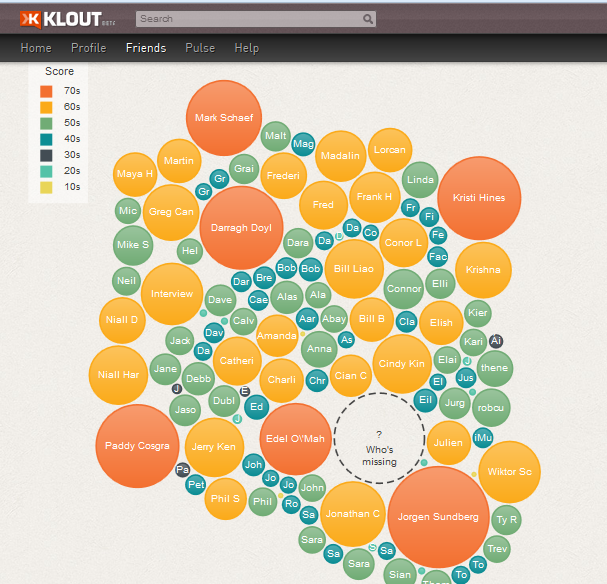
To sign up and use Klout, you must have at least a Twitter or Facebook account and you sign up by directly connecting to one of those.
You can also link up a Google+ account (a profile not a page), LinkedIn and Foursquare.
Score
After signing in and linking up your desired profiles, your score will be calculated.
Dashboard
Whenever you login to Klout, you will see your dashboard which includes your current score, which social media platforms are performing best and how your score has fluctuated over a 90 day period.
Profile
You can view further criteria on your or another user’s Klout by clicking on the profile tab.
- Key moments: Here you can review the key moments in a user’s activity over the last 90 days.
- Influencers: It is also here where one can view a Klout users Influencers.
- Topics: It is also here where we can see which Topics a user has influence in. A Klout user can select which 10 topics to showcase on their profile. So just because someone has a topic such as “Social Media” listed does not necessarily mean they are influential in that area.
- Friends: The Friends Tab on an individual Klout account enables a user to identify who in their network has the highest Klout scores.
- Lists: Another great feature here is the ability to create Lists. Creating lists can be a great way to organise influential Klout friends into categories. For example I could have a list of my top Klout users in Irish Media and a list for my top Irish Social Media users. So just like Twitter lists this can be a great way to focus and drown out the noise.
What is +K?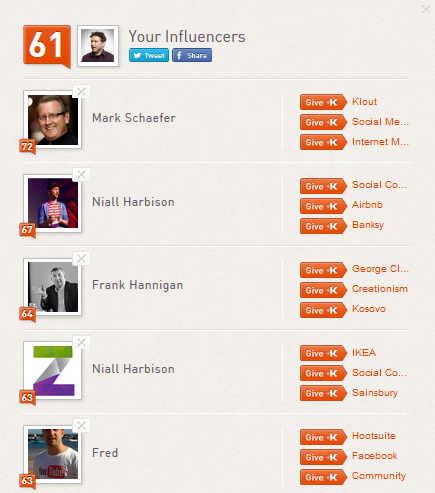
+K is in many ways Klout’s own equivalent of Google’s +1 or Facebook’s Like button.
- Users are encouraged to endorse other users for their topics or areas of expertise. The +K’s a user receives contributes to a user’s overall Klout score. So, giving someone +K means that you are indicating that you think they are influential in a certain topic.
- Very often a great way to get users to give you +Ks is to make the first move and recommend them for a topic and give them a +K.
- Note: You are limited to 10 +Ks a day and you can only +K once per topic every week.
How to give a +K
So let’s say I want to give Frank Hannigan a +K:
- I go to his profile page and find his listed topics.
- All I have to do is select the relevant topic I wish to endorse him for and click the +K button.
- You then have the option of sharing your +K on Twitter or Facebook. One reason for doing this is to ensure the user sees your “good deed” and to show your community of followers and/or friends the high calibre of professional you are connected to.
Perks
Top Brand in particular in the US have teamed up with top brands to offer influential Klout users free products and discounts. Perks are often offered to users who have a Klout Score above a certain number and live in a specific area.
- The Perks button can be found on the top of the page right of the Klout search bar.
- The value to the brand offering the “Perk” is that they are getting their product or service to online influencers and hopefully they will “champion”, recommend or even just talk about their brand online.
Pulse
Keep up to date with all the world’s top influencers by clicking on the Pulse tab on your Klout page. It can be a great way to view Klout score lists and read top influencers latest blog posts. I must confess I rarely use pulse and find it very American content focused.
Mobile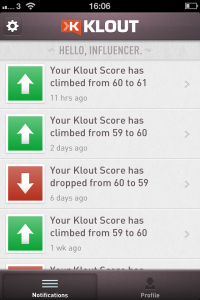
Klout’s Mobile App is a great way to keep up to date with your, and your friends, Klout scores on the go. I must confess I very rarely paid much attention to my Klout score and never logged into my Klout account on my desktop. However, I often find myself using the app.
Hootsuite
Are you a Hootsuite user? If you have a Hootsuite account and use it to manage your Twitter activity you will be pleased to know that it has some great options to allow you to identify and look at your followers Klout scores. How?
- If you click on the filter button on your Home Feed and select “Filter by Klout Score” you can select the tweets from users whose Klout score is above a certain level. This filter is a great way of identifying who are the level of influencers in your Twitter network.
- It may be valuable to engage more with users with a higher Klout score.
- NB. You can only filter your Home Feed by Klout score with a free Hootsuite account. However, you can filter any list or Twitter stream with a Premium Hootsuite account.

Another thing you can do on Hootsuite is to click on any users profile and it will tell you the persons Klout score. I use this to look at the scores of users who have ReTweeted or shared my content online.
What is a good Klout Score?
I have read numerous articles looking for the answer to this question and have yet to find a straight answer from anywhere. All users of all Klout scores will have some level of online influence. So it is important not to alienate a large and valuable portion of your audience.
However over the last 12 months I have observed employers looking for staff and documenting minimum Klout scores required in job descriptions. I remember seeing an advert for a Community Manager in the US for Salesforce requiring a minimum Klout score of 35.
Many of the deals and perks seem to target users of Klout scores above 40, so that may be an indicator of a score to aim for.
So in conclusion companies have become very aware that the online communities can make or break their brand.
So the task for businesses is two fold:
- Create a strong online presence and level of influence online. So we need key members of staff to score highly on the likes of Klout. Content is power when achieving this and our goal should be on how to create and move content online.
- To identify and engage with our key influencers online.
Klout is by no means perfect, but it is only going to improve. It is a good starting point for companies to looks at who are the influencers and who are they influencing online.
Understanding the Digital Economy
Social business reports
To download our industry specific and researched social business reports, click here.
Guides
- Social Media Strategy
- Blogging
- YouTube
- Google Analytics
- Adwords
- Google+
Contact us
If you would like to discuss online influence with The Ahain Group, please feel free to contact us.
Connect:
Online video can no longer be ignored. On the crowded commuter train many passengers have ditched their evening newspaper for YouTube on their phone. In my office when something goes wrong with the system our calm, twenty something intern sits back and watches a YouTube video to find a solution to the problem. YouTube is the 2nd biggest search engine in the world behind the mighty Google itself. So there is no doubt that you, as a company, need a presence there. Here’s everything you need to know about YouTube for business to get started.
The business case for using YouTube
Need more reasons to jump on the “YouTube for business” bandwagon?
- 70% of YouTube traffic comes from outside the US, so it is not just a US thing
- 60 hours of video is uploaded every minute
- Over 4 billion videos are viewed a day
- YouTube Mobile gets 400 million views a day
YouTube for business: before you start
Beware – No-one that I am aware of has ever gone onto YouTube in search of boring, self-promoting video.
So before you jump in you need to decide on a few things:-
- You must clearly define who your target audience is and understand what valuable content would be of interest to them.
- Define what your business objective is by creating a YouTube Channel.
- Is it a branding exercise or are you trying to generate sales from your YouTube videos?
- Ensure that YouTube is integrated into an existing Social Media strategy you already have in place.
Setting up
Knowing that you have a clear objective it is time to create your own YouTube channel. Ideally you should create your account with your existing Google account. That way your account will work well with Google+ and in particular, Google+ Hangouts. So to sign up simply go to www.youtube.com/signup
Username
When creating your account make sure that your channel looks great and that it reflects your brand. You will want to customise your username. Eg. www.youtube.com/user/ahaingroup. This username can then be used on all your marketing materials, email signature, business cards etc.
Later, market your username and encourage people to visit and subscribe to your channel. Even the best videos on YouTube will not be seen if no one knows they are there.
About
Make sure you fill in the “About Us” section and add links to your website and other Social Media sites.
- Click on “My Channel” on the top right hand side of your home page and then click on the edit button. Try to make this section short and sweet.
- Treat it a bit like an elevator pitch and for SEO benefit add in relevant keywords to make your channel more likely to be found.
Avatar and background
- Click on “Channel Settings”. Make sure you add an image or logo for your YouTube avatar - suggested dimensions: 800 x 800 pixels. Maximum size: 1 MB.
- You will also have the opportunity to customize your background here. Choose a colour that fits in with your background image and logo. Maximum size for your background image is 1MB.
Tags
Click on the Info and Settings section and add Tags to your channel. These keywords will enable YouTube users to find your account. So ask yourself what words or phrases would my targeted viewer use if trying to find my video?
Tabs
Click on the “tabs” section and make sure what activity you wish to share on your YouTube channel.
Customise layout
Before you decide to upload content, create favourite folders or subscribe to third party channels. You should decide on what layout your channel should have. The default setting should be fine, however you can customise your layout by selecting the “Featured” link.
If you are creating frequent video content the “Blogger” option may be your best bet as it will display a reverse chronological list of your video uploads.
Uploading videos
Now that your channel has been set up it is time to upload content to your account. So just click on the Upload Button at the top of your screen. You can:-
- Upload an existing video,
- Create a video from your webcam,
- Create a video from your photographs and/or images
- Broadcast a Google+ Hangout directly to your YouTube channel.
Video length
A standard YouTube account will only allow you to upload videos under 15 minutes in length. However it is easy to request to be allowed to upload longer videos - follow these steps:
- Visit the upload page at www.youtube.com/my_videos_upload
- Click Increase your limit at the bottom of the page
- Follow the steps to verify your account with a mobile phone. Currently they aren’t able to offer other ways to verify your account.
Note: The most viewed videos on YouTube are less than 5 minutes in length.
Average Video Length for Top 50 Most Shared Global Videos in 2012:
- Top 10 - 4 minutes 11 seconds (does not include “Kony 2012”)
- 11-20 - 2 minutes 30 seconds (1,501 total seconds)
- 21-30 - 3 minutes 5 seconds (1,849 total seconds)
- 31-40 - 2 minutes 57 seconds (1,770 total seconds)
- 41-50 - 1 minute 45 seconds (1,049 total seconds)
- Top 50 - 2 minutes 54 seconds (8,682 total seconds - does not include “Kony 2012”)
(Source - http://www.reelseo.com/length-youtube-video/)
Make sure your video gets your point across and if applicable a clear call to action. Remember you are not creating the video for you, you are creating it for your audience. So dare to be different, dare to stand out.
VideoToolBox
The VideoToolBox channel is a great resource to find out more about video production, editing and uploading video. It is a channel designed to showcase videos from users about making videos. http://www.youtube.com/user/videotoolbox
Format
Upload your video in the best quality format. We would normally upload HD video as a Windows Media Video file in widescreen format (1280 x 720). The great thing about the Windows Media Video file is that it enables good quality video at a relatively small file size. This makes the upload to YouTube fast and effortless.
Title, description and tags
Once your video has been uploaded take some time adding a title, description and tags.
- Make sure your title is something that a YouTube user would want to click on and add keywords into your title where possible.
- Add a description of what the video is about and add tags to your video.
- Choose the most relevant category to list your video under.
See below for an example.
Privacy settings
When you have uploaded a video on YouTube you can decide to make it:
- Public,
- Unlisted,
- Scheduled
- or Private.
(See Privacy settings tab on the image above).
Public
If you want the world to see your video you must make sure your video is Public. Only Public videos will show up in YouTube searches.
Exclusive
That said I’ve often uploaded exclusive content onto my YouTube channel and very often bonus training resources. I can make these videos invite only (Private) or Unlisted so only a viewer with a link can see my bonus content. This can be a great way to make a loyal customer or client feel special.
So, for example, I create a 10 minute video about Facebook for Business offering valuable content. At the end of the video I put a call to action, eg, “subscribe to my YouTube channel and ‘Like’ my Facebook page at …… and gain access to the full 60 minute video.”
Editing
YouTube has a number of great features to help you enhance the quality and impact of your video once you have uploaded it. As long as you are in “Edit video” mode you will see a number of options at the top of your page – Enhancements, Audio, Annotations and Captions.
Enhancements
Allows you to brush up the quality of your video:
- Auto Fix -The Auto-fix feature may be worth trying out and seeing if it improves your video masterpiece.
- Style - You can also change the style of your video by selecting a number of great looks. Eg. 60s look, Black and White etc. Don’t worry if you get tired of applying filters or don’t find one that suits, you can still revert back to it’s original look.
- Lighting - You can also fine tune the lighting on your video by clicking on the lighting tab.
- Stabilize - Did you record your video without a Tripod? A great feature in the enhancements section is that you can fix your shaky camera work by clicking on the stabilize button.
- Blur faces - You can blur out people’s faces in your video should you need to do so. See Additional features above.
Annotations
Annotations lets you add:
- Text links to your videos
- Links to other videos,
- Channels and playlists
- Or even create interlinked video narratives.
You control what the annotations say and when and where they appear on the video. These can be useful if you want to link back to your website or even add a “Subscribe Now” link to your YouTube video.
Audio
The Audio section allows you to add royalty free music to your video. However if your video has audio already you are likely to find that the music drowns out your sound even if you select the “Favour Original Audio” option.
Captions
Add a text transcript of your audio to your video here.
- This is very good for your SEO, but I wouldn’t be a great fan of watching a video with subtitles.
- YouTube can automatically convert the audio to text for you (though it doesn’t translate very well), however I would recommend you upload the text by clicking on the “Upload Caption File or Transcript” button.
Video editor
Finally you can create projects - trim and attach videos to each other in order to create brand new video content in the Video Editor section.
Getting views
Once your video has been uploaded and tagged it is vital to ensure that it reaches your intended audience. If you are banking on your video being found by a large number of YouTube users you may only have a few hours to get traction after you upload your video.
So you need to share your content to as many of the right people as quickly as possible. Remember no one will see your video unless they know it is there. So you will need to market your post to your audience.
Share
Below your video you will see a share button. Here you can easily share your video by using the shortened URL or even send the video out to your various social media networks. A nice feature with the shortened URL is not only can you choose to link to the HD version, but you can choose exactly what time you want the video to start. This can be powerful if there is a specific part of your video you want the viewer to see.
Embed
YouTube also allows you to embed your video on a third party site such as your website or your blog. A good way of generating views for your video is to create a video blog post with text and the embedded video. You could do this on your own company blog or post to a community or business blog site such as Tweakyourbiz.com.
So where else might one share their YouTube video? Well….everywhere your intended viewer is liable to be hanging out.
- Depending on the nature of the video – LinkedIn Groups can be a great place to start a conversation about your video topic and share your link. I would also share the video as a LinkedIn update on my personal and company pages.
- Facebook, Pinterest, Flicker and Twitter are good platforms to share your video. Don’t be afraid to share your video multiple times. Eg. I will typically share a video link three times a day on Twitter for three days when I upload a new video.
- If your company sends out newsletters why not embed or at least link to your latest video there.
Other steps you will need to take to get views are:
- Brief several individuals you have a strong relationship with and who have good online Klout and get them to share and mention your video.
- Take time building up a list of YouTube subscribers.
- Identify a list of key influencers in your industry or community. Engage with them and encourage them to share your video.
- Use Bookmarking sites such as Reddit, Technorati and Digg to list your video.
- Engage with third parties who are commenting on or sharing your video. Always thank any user sharing your content.
- If appropriate write a press release about your video and send it to relevant media channels.
Advertising
And don’t forget about advertising. Spending money on online ads will increase the impact of your video. You can generate views and/or subscriptions through targeted Google, Facebook or even YouTube Advertising.
True View video ads works well with Google Adwords for Video:
Google Adwords for Video:Right Viewers at the Right Price:
Find out how to Create Your Google Adwords for Video here:
Measuring success
You can get a quick recap of stats underneath any video. Just click on the statistics symbol. This will give you a snap shot of how a video is performing. I find these stats valuable when assessing 3rd party videos and analysing how competitor videos are performing.
Analytics
However, when analysing your own videos YouTube provides channel owners with some powerful insights. To access just click the Analytics tab on your Channel’s homepage - it is at the top right hand side next to the Video Manager tab.
Here you can see:
- detailed data on your video performance, engagement, demographics and where your video has been viewed. (mobile, 3rd party sites etc.)
- the countries where your video has been viewed
- where your views are coming from
- the age and sex of your audience
Reports
YouTube allows you to download reports of data (in Excel format). So ensure you take the time to analyse the performance of your videos.
YouTube ROI
- Impressions - Listerine place 55 million impressions on the back on an interactive YouTube campaign
- Traffic - Dollar Shave Club‘s brilliant ad starring CEO Michael Dubin racked up more than 8 million views in 10 months.
- Sales - 50% of Rokenbok’s customers are generated from YouTube
- Branding - Nike generated 61 million new video views in 2012. Over half of these views came from just the “Summer of Football” campaign.
- ROI - Heineken discover that YouTube has a more efficient ROI than TV
Finally….YouTube is a brilliant place to listen, learn and engage with other users.
- So don’t forget to subscribe to other users channels. It is amazing what valuable content you can gather and even the influential people you can network with by subscribing and commenting on other people’s content.
- Spend time analysing competitors videos and assess what they are doing well and what they are falling down on. Then go out and trump their content.
- YouTube is becoming more and more Social and is now a place for companies not only to showcase their brands, but also a place where companies can network and engage with their audience.
- I love the fact that Google+ Hangouts now allows YouTube users to broadcast content live. This enables us to get new, unique content out to our audience faster and quicker than ever before. However, it is important to invest in a high quality webcam and a good microphone if streaming content live.
YouTube is no different to any other platform, so if you are going to be there……look amazing, be different from the rest, engage with your audience, have a clear message and ensure everything you do enhances your brand.
I look forward to viewing your viral video on YouTube soon.
Understanding the Digital Economy
Social business reports
To download our industry specific and researched social business reports, click here.
Guides
Contact us
If you would like to talk further about how YouTube can benefit your business or if you would like The Ahain Group to help you along this path please feel free to contact us.
Connect:
Address: Unit 206 | NSC Campus | Mahon | Cork | Ireland
The Ahain Group’s ‘Social Business Report : Attracting Top Tier Talent’ is an evaluation of the recruiting techniques employed by high profile businesses and recruitment agencies within Ireland, the UK and globally.
50 businesses were surveyed to identify current recruitment trends in the global marketplace, across a mix of sectors including:
- Recruitment (agency)
- IT and Software
- Engineering and Manufacturing
- Retail and production
- Public Sector
- Public service
- Digital
The survey results set out to analyse the extent of recruiting changes and to uncover the use of online and offline channels for recruitment in 2012. While the survey’s lead question was ‘How can you attract top tier talent?’, specific questions encompassed the whole remit of recruitment as a general topic, with a view to understanding the techniques, platforms and choice of media that those in a recruitment role would select.
For more information, contact The Ahain Group:
Email: [email protected]
Connect:
Unit B1 | Fota Point Enterprise Park | Carrigtwohill | Cork