
Back To All Posts
LinkedIn for Business: The Ultimate Guide

Tap into professional knowledge, insights and opportunities through growing your business network. LinkedIn is the world’s largest professional network and a social platform to manage your professional identity and brand. Find out what you need to know about Linkedin for business to get started.
The business case for using Linkedin
Linkedin now represents the largest professional networking opportunity ever:
- There are more than 175 million members in over 200 countries and territories.
- Professionals are signing up to join LinkedIn at a rate of approximately two new members per second.
- Members did nearly 4.2 billion professionally-oriented searches on the platform in 2011 and are on pace to surpass 5.3 billion in 2012.
- LinkedIn members are sharing insights and knowledge in more than one million LinkedIn Groups.
- Sixty-two percent of LinkedIn members are located outside of the United States, as of August 2, 2012.
- More than 2 million companies have LinkedIn Company Pages.
- LinkedIn counts executives from all 2011 Fortune 500 companies as members; its corporate hiring solutions are used by 85 of the Fortune 100 companies.
Profiles
LinkedIn allows users to host a profile, this is a personal web page where you can list your professional information like job experience, skills etc. Your profile allows others to find out about you so it’s critical that you complete it, including uploading a professional looking avatar (headshot photo).
Complete your profile
LinkedIn guides you through this process by:
- Marking you from 0-100%
- And prompting you to fill in any missing fields
The higher the percentage, the more likely you are to appear in search results so ensure that you complete the following information:
- Industry and postal code
- A current position with description
- Two more positions
- Education
- At least five skills
- Profile photo
- At least 50 connections
- A summary
Profile views
Your profile has two different views:
- View: see your profile as your network does
- Edit: edit the different elements of your profile
Public profile
Your profile also includes a link to your “Public Profile”. This is the profile that will be shown to users not signed-in that are searching for you via search engines like Google. Click on “Edit Public Profile settings” to control which parts your profile will be visible to search engine users.
Vanity URL
You can also select a personalized “Vanity URL” for your public profile, giving you a custom web address when linking to and promoting your profile. Setting this URL will also adds SEO value in that it will usually include your name.
View and interact with other profiles
When viewing other profiles, you will be given a list of options to the right:
- Send a message: Send a message to the user if you are connected, an inMail if you are not
- Add to your Network: Adds the user to your network
- Recommend: Write a recommendation for your connection
- Forward profile: Have someone you know in common introduce you
- Get introduced: Write a recommendation for your connection
- Search for references: Search through the user’s companies for potential references
- One Click Reference: Conduct a quick reference check on the person that you are viewing
- Print: Prints out the profile you are currently viewing
- PDF: Saves a PDF Version of the profile that you are viewing
- Download vCard: Download your connections details into your address book
Updates
Your status message allows you to share professional updates with your network. You can share updates from a number of different places, both inside and outside Linkedin.
5 ways to update your status
- You can set your status message by clicking “What are you working on?” on the left column of every page, under your name and profile photo.
- When you engage in discussions in LinkedIn groups, that activity also counts as an update.
- You can post updates from outside websites by clicking the LinkedIn social share button, where available.
- Or you can add the LinkedIn sharing bookmarklet to your browser to share sites as an update.
- You may also connect your Twitter account to LinkedIn which allows you to post tweets on LinkedIn as if they were status updates
Note: Other users appreciate information but not excessive traffic on their feeds. You can mute connections if you choose. Hover over a user’s update on the homepage and click the “hide” button to stop receiving updates from that user.
Connections
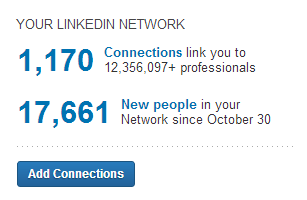
LinkedIn labels connections and potential connections by degrees. People you’re connected to are “1st degree” connections and people you’re not yet connected to, but who are linked to your 1st degree connections are 2nd degree connections and so on.
Control who contacts you
You control who contacts you, choose:
Introductions and InMail: if you’re open to receiving most kinds of relevant opportunities.
Or
Only introductions: A contact request will have to be first approved and forwarded to you by a connection.
Grow your network
There are many ways to grow your connections and network; here are three to get you started:
- Find people you already know by typing their name into the search box
- Import your email list to LinkedIn to pull up a list of potential connections.
- Use the “People You May Know” feature. As you build your network, LinkedIn will suggest additional connections based on the networks of the people you are connected to.
Groups
LinkedIn groups are spaces where you can share content, ask for advice, post or search for jobs and network with others.
- Quickly discover the most popular discussions in your professional groups.
- Have an active part in determining the top discussions by liking and commenting.
- Follow the most influential people in your groups by checking the Top Influencers board or clicking their profile image to see all their group activity.
- See both member-generated discussions and news in one setting.
- Easily browse previews of the last three comments in a discussion.
- Find interesting discussions by seeing who liked a discussion and how many people commented.
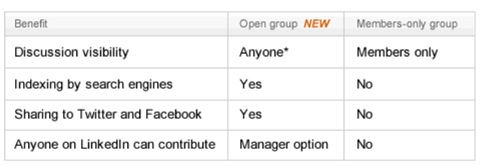
Open or Members Only
Groups can be “Open” or “Members-only”
Create your own group
You may choose to create your own group but remember you will then be responsible for managing the group. i.e. supervising discussions, settings, etc.
Companies
Like Facebook pages, businesses can choose to have a company page on LinkedIn.
For the business
- Tell your company’s story
- Highlight your products and services
- Engage with followers
- Share career opportunities
- Drive word of mouth at scale
For the professional
- Explore companies of interest
- Get the latest company updates and industry news
- Research products & services
- Learn about job opportunities
After you follow a company on Linkedin, you’ll see its updates appear on your homepage with those of your connections.
Set up a company page
Go to the Add Company page:
- Enter your company name and company email address
- Confirm your request through an automatic email that we will send to you
- Start filling in your company’s information
Once you have set up your company page, you can:
- Add a “Products & Services Tab” to showcase your products and services
- And post “Company Status Updates” to share company news and relevant information. These posts can be seen on the company’s Overview tab by any LinkedIn member or on each follower’s homepage updates feed.
Applications
You can further customize your profile and share content with your network by adding applications.
- Add the WordPress app to share your blog posts with your network
- Or if you have company presentations that you would like to share, upload then to SlideShare and add the app to your profile.
Find applications
Check out the applications directory to discover which applications you would like to use.
Mobile
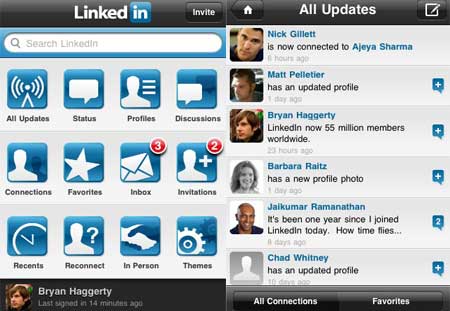
LinkedIn has a range of mobile applications including for the iPhone, iPad, Android, BlackBerry, Windows and Palm devices. These are wonderful for networking, on the go!
Network on the go
After meeting someone you want to connect with:
- Search for that person on your mobile app
- Add them as a new connection on the spot.
Linkedin ROI
- Investment: Irish businessman Frank Hannigan raised €162,500 in just 8 days for his software company Goshido.
- Branding: Hewlett-Packard leveraged the LinkedIn to shift brand perceptions.
- Target customers: Dell tapped into LinkedIn to foster a community of information technology professionals who were the technology vendor’s target customers.
- Grow revenues: James Filbird grew his company JMF International Trade Group Ltd to $5 million in revenue largely through his efforts on LinkedIn.
- Thought leadership: Hubspot built thought leadership by using a company page and a group to engage with 16,500 followers and 82,000 group members.
Understanding the Digital Economy
Social business reports
 To download our industry specific and researched social business reports, click here.
Guides
Contact us
If you would like to talk further about how LinkedIn can benefit your business? or if you would like The Ahain Group to help you along this path please feel free to contact us.
Connect: 


Address: Unit 206 | NSC Campus | Mahon | Cork | Ireland
Ref: Linkedin
Niall Devitt
Niall Devitt is a doer, not a talker when it comes to social media. Niall advises organisations how to plan, design and implement social media strategies that generate real business returns. Niall is Chief Digital Strategist & Founder at the Ahain Group, an independent, ideas-led social business consultancy with experience of working with all types of clients and sectors– from large blue-chip multinationals to the 1 person SME. Download our industry specific and researched social business reports. In 2009, Niall co-founded TweakYourBiz.com (formally Bloggertone.com) an international, business community and online publication.
Follow Me:


